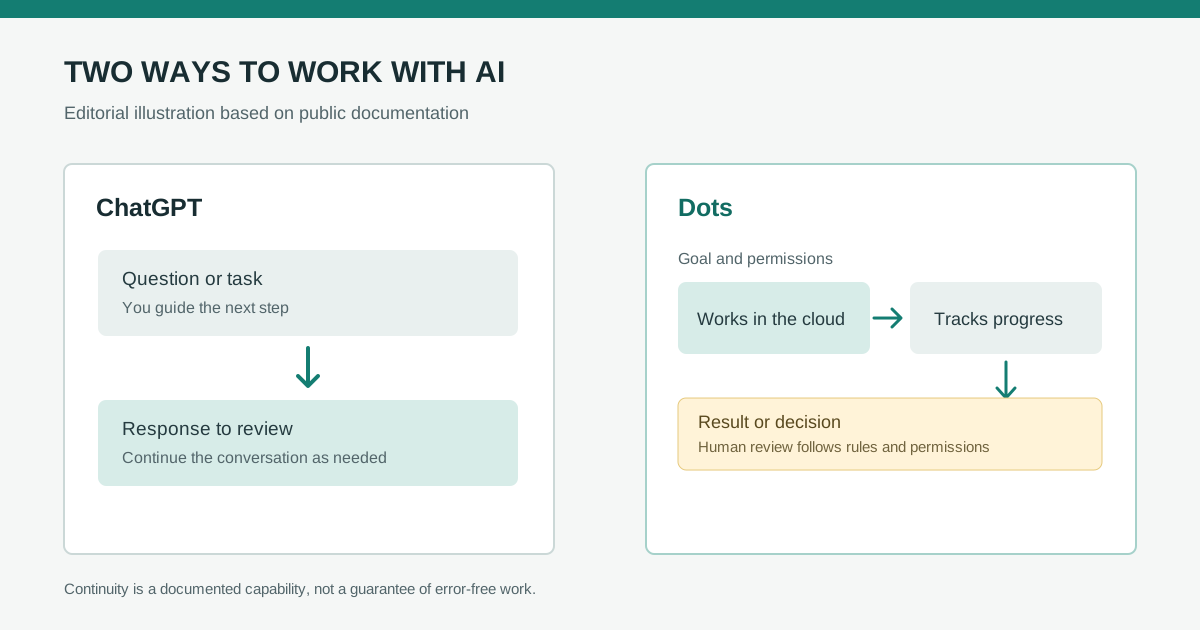
OpenAI Dots is more than another ChatGPT conversation: it is an agent designed to keep responsibility for a task and make progress between conversations. It can work on its own cloud computer, use apps you connect, and bring back results or decisions for you to review, according to OpenAI’s Dots documentation. The practical difference is continuity, not a guarantee that work happens without supervision.
This guide compares Dots with a regular ChatGPT conversation using OpenAI’s current documentation. It is a documentary comparison, not a hands-on test. For U.S. readers, the useful details are the gradual Pro rollout, what the plan includes, and a texting beta limited to some Pro accounts.
How Dots differs from a regular conversation
In an ordinary chat, you ask a question or give a task and guide the next step. A Dot can take on a broader responsibility, carry relevant context forward, continue work while you are away, and come back when it needs your judgment. OpenAI says a Dot has its own cloud computer and can work with the apps you choose to connect.
| Need | ChatGPT conversation | Dots | What it means in practice |
|---|---|---|---|
| Answer a one-off question | Ask and direct each next step | You can also ask a Dot for an answer | A regular chat is usually enough for a self-contained question. |
| Keep a project moving | Resume from chat history and provide more context | Track progress and continue between conversations | Dots is a better fit for work that changes, has waiting periods, or needs follow-up. |
| Use files and connected apps | Depends on the tools available to your account | Use apps you connect and its cloud computer | Grant only the access needed for the task. |
| Set action boundaries | Tool permissions vary by feature | Custom rules can allow an action, require pre-approval, ask first, or hand it back to you | Set rules around impact; not every action needs the same level of review. |
| Work while your computer is off | A regular chat does not continue on its own | Cloud work can continue while your devices are off | Local computer access is optional and starts turned off. |
| Contact the agent | ChatGPT conversation | ChatGPT and supported connected channels; U.S. texting is a limited Pro beta | Messaging access and app access are separate permissions. |
OpenAI’s documentation distinguishes messaging channels, connected apps, and computer access. Connecting a channel does not automatically connect your inbox or local files. A Dot can use your own cloud computer; access to your local computer is optional and begins turned off. If you enable it, you grant access to files and work on that computer, and local tasks run separately from the cloud task.
What changes in the workflow
The central feature is ongoing work: assign a goal, add information or change priorities while a task is underway, and receive updates or decisions that need your judgment. OpenAI also documents memory across conversations, scheduled or recurring work, a browser and software in the cloud, and background agents that can work on parts of a task.
For some actions, you can choose whether a Dot may act without asking, act when pre-approved, ask first, or hand the step back to you. Those rules do not make results error-proof. OpenAI advises reviewing the work and checking important details; stopping a task does not automatically undo changes already made.

Illustration created for this article; it does not depict the actual Dots interface or architecture.
A task flow that keeps you in control
The steps below are a practical recommendation, not a required product sequence. State the responsibility clearly, limit access to the sources it needs, and review the result before authorizing consequential actions.
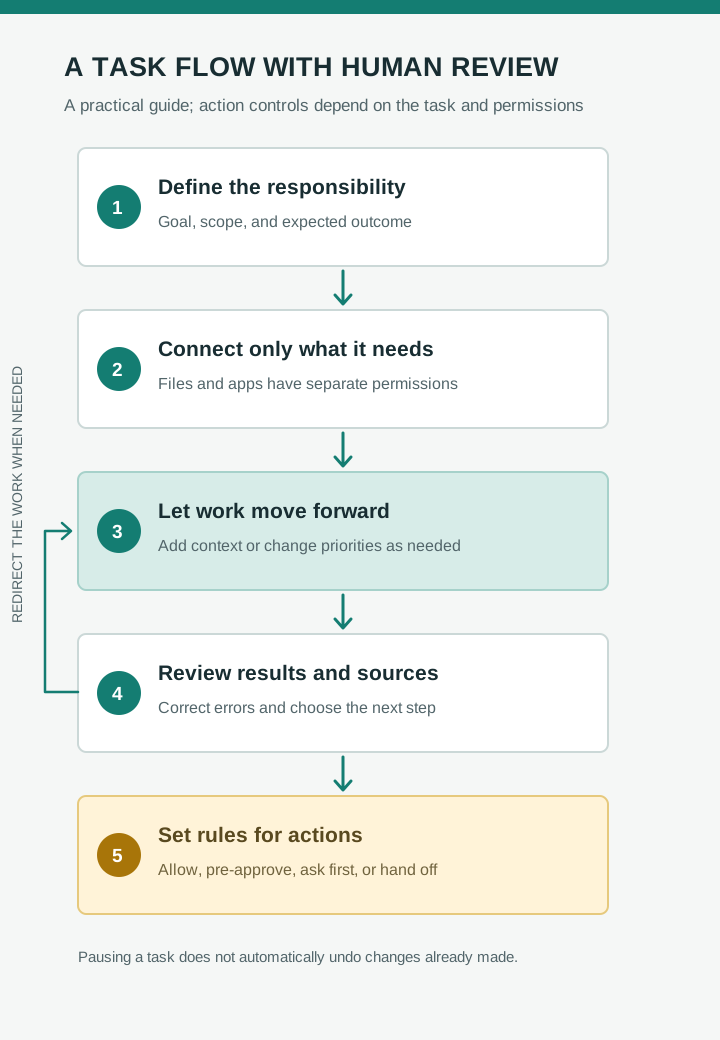
Work can continue between conversations; action rules depend on your task and account permissions.
U.S. availability and plan details
OpenAI says Pro is rolling out in supported markets outside the European Economic Area, Switzerland, and the United Kingdom. Business Premium is available in supported ChatGPT regions. Enterprise, Edu, and Healthcare workspaces can try the beta when an administrator enables it; it starts turned off. Access rolls out gradually and may take several days to reach an eligible account. Check your own plan and workspace settings before planning a workflow.
The first Dot is included in Pro or Business Premium at no extra cost, according to OpenAI’s setup guide. OpenAI’s setup guide and release notes describe first-month usage differently: one mentions an allowance for deeper work with extended limits, while the other says Dots usage will not count toward eligible plan allowances. Neither page gives numeric limits or a separate price for Dots. Check your plan’s current terms before relying on a particular allowance.
Texting is a separate, limited beta for Pro users in the U.S.; it is not available in Business or Enterprise workspaces and may not be enabled for every Pro account. OpenAI says message and data rates may apply because texting uses a third-party provider. The company advises caution with sensitive information in text messages. You can call your Dot from its conversation in ChatGPT when calling is available; the current setup guide does not describe a Dot-initiated call feature. A Dot also cannot have its own standalone email address.
You must create a Dot in the desktop app or on desktop web. Creation on mobile and mobile web is not supported, though you can continue in the mobile app when access is available. You can connect a personal email account for tasks, but messaging access does not grant that access automatically.
When to use each option
| Situation | More practical choice | First step |
|---|---|---|
| You need a summary, draft, or answer now | ChatGPT conversation | Share the relevant context and check the answer. |
| Work needs follow-up, waits on new information, or changes over time | Dots, if your account has access | Define the goal, allowed sources, what to keep current, and when to ask you. |
| An action could send a message or change account data | Dots with explicit rules and review | Start with drafts or ask-first rules; test on a low-impact task. |
| Work depends on local documents or code | ChatGPT or Dots, depending on the task; Dots needs local access enabled | Check which files and apps become available and whether your computer must stay online. |
| You are considering texting from a U.S. Pro account | Dots only if the limited beta is enabled | Review the texting notice and avoid sending sensitive information by SMS. |
One cautious pilot: ask a Dot to keep a list of project decisions and dates from a document, suggest updates, and ask before sending messages or changing the original. Check the sources behind each change, correct one omission, and see whether it follows that guidance on the next update. This is a suggested method, not a test result from Technology by Operleaf.
Also consider what happens to connected information. OpenAI says disconnecting an app does not delete information a Dot has already obtained from it; its guide says resetting the Dot deletes its conversations, saved memories, and scheduled tasks. Review the app permissions and deletion controls before connecting a sensitive account.
Conclusion
If your need ends with an answer, start with a regular ChatGPT conversation. Dots makes more sense when work continues and needs context, follow-up, or coordination across apps, provided your account has access and you are willing to set boundaries and review actions. For U.S. Pro users, the first Dot is included in the plan as rollout reaches eligible accounts; texting remains a limited beta.
This comparison uses OpenAI documentation reviewed October 2, 2026. Features, connected apps, plan allowances, and regional availability can change. We have not tested Dots, so confirm access and permissions in your account. See the Technology by Operleaf editorial method for how we treat provider documentation.